
This article provides an overview of Clio Operate’s document management functionality.
Firstly, it is important to understand how Clio Operate co-exists with your existing Document Management System (DMS):
- Clio Operate does not store documents in its database. These will reside in a DMS of your choice.
- Clio Operate can be configured to work seamlessly with different DMSs, including iManage/Worksite, O365, SharePoint, Documentum and NTFS file stores.
- Each time the ‘documents’ section of a work item is accessed, Clio Operate will display (in its own interface) a list of all documents/emails filed in the exact hierarchy that exists in your DMS. Documents can be opened, edited and actioned in other ways through Clio Operate and upon saving, they update the underlying DMS store.
- New documents and emails created in Clio Operate will be stored in the DMS - and accessible from within Clio Operate or from within the DMS.
- Any new documents and emails stored directly within the DMS (e.g. bypassing Clio Operate) will be accessible from both the DMS and Clio Operate.
This approach means you will retain the ‘single version of the truth’ regarding matter documents/emails while still having all the benefits of a single electronic Clio Operate file from where you can perform any matter-related tasks. Likewise, any existing DMS add-ins for Word or Outlook will continue to work seamlessly with Clio Operate.
Introductory video on document management
View the Platform Deep Dive - ShareDoShow playlist on YouTube.
Document Repositories
Clio Operate provides a rich set of functionality on top of a Document Management System; these are typically accessed through the repository view within a case.

Key functions provided through this view include:
- “Live” view of the underlying DMS structure, including adherence to any existing security barriers.
- Searching for documents in All folders or the Current folder, including searching within file contents.
- Ability to drag and drop documents into a case repository or, indeed, in any one of your matters.
- Seamless integration with all of Clio Operate’s omni-channel functionality, including email, fax, SMS, portals, print, document expectations and the like.
- Integration with the native search capabilities of the underlying DMS.
- Document preview, including annotations, redaction and the like.
Like all other portal widgets, this is configurable via the portal modeller and a dedicated widget.
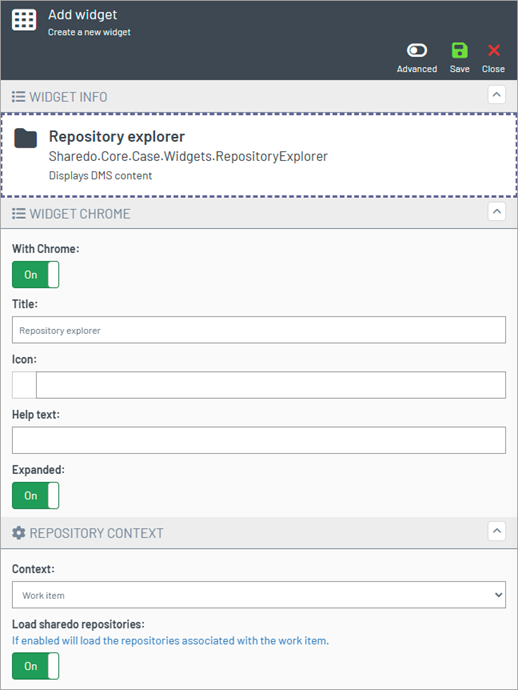
See Portal Widget: Configuring Document Repository Viewer
DMS Blade
In areas of the environment where the DMS blade is shown, you can maximise the blade to fill the screen, and you will find an option in the filtering menu to allow a separate Title column.

Document Tools: Bundling and Expectations
From the document repository, you can see document expectations for the case and create one or more document bundles. These are accessed by opening the Bundling option.


Bundles are defined by Bundle Templates, which determine the overall style of the generated document, along with any required sections. Documents can then be added to the relevant section, and when you are ready, a fully styled, indexed, and paginated document can be generated, all without leaving the Clio Operate application. See the article Preparing Document Bundles for more information.
Document Tools: Splitting
The document splitting tool is also accessible from the repository view and provides users with an in-built feature to split a multi-page document into separate, discrete documents.

Inbound Post Processing
Clio Operate can be integrated with multi-functional devices (MFDs) and scanners to facilitate the bulk import of documents into the system. This can either be performed in a fully integrated fashion or via the manual filing interface.